
A chapter stays one chapter. Revisions live inside it as named versions, so structure and revision history do not drift apart.
The familiar folder problem
A rewrite often starts innocently: duplicate the file before making a large change. Then comes chapter-7-v2.docx, then chapter-7-final.docx, then chapter-7-final-edited.docx. After enough iterations, the filename is doing work that should belong to the writing system.
The deeper problem is not ugly names. It is uncertainty. Which file is current? What changed between two versions? Is the editor commenting on the same text you are editing now? Can you safely return to the older ending without reconstructing it from backups?
Step 1. Keep the manuscript structure stable
In B-Maker, a scene, chapter, or article remains the same structural element while its text can have several versions. The manuscript tree does not need duplicate chapters called “old,” “new,” and “really new.”
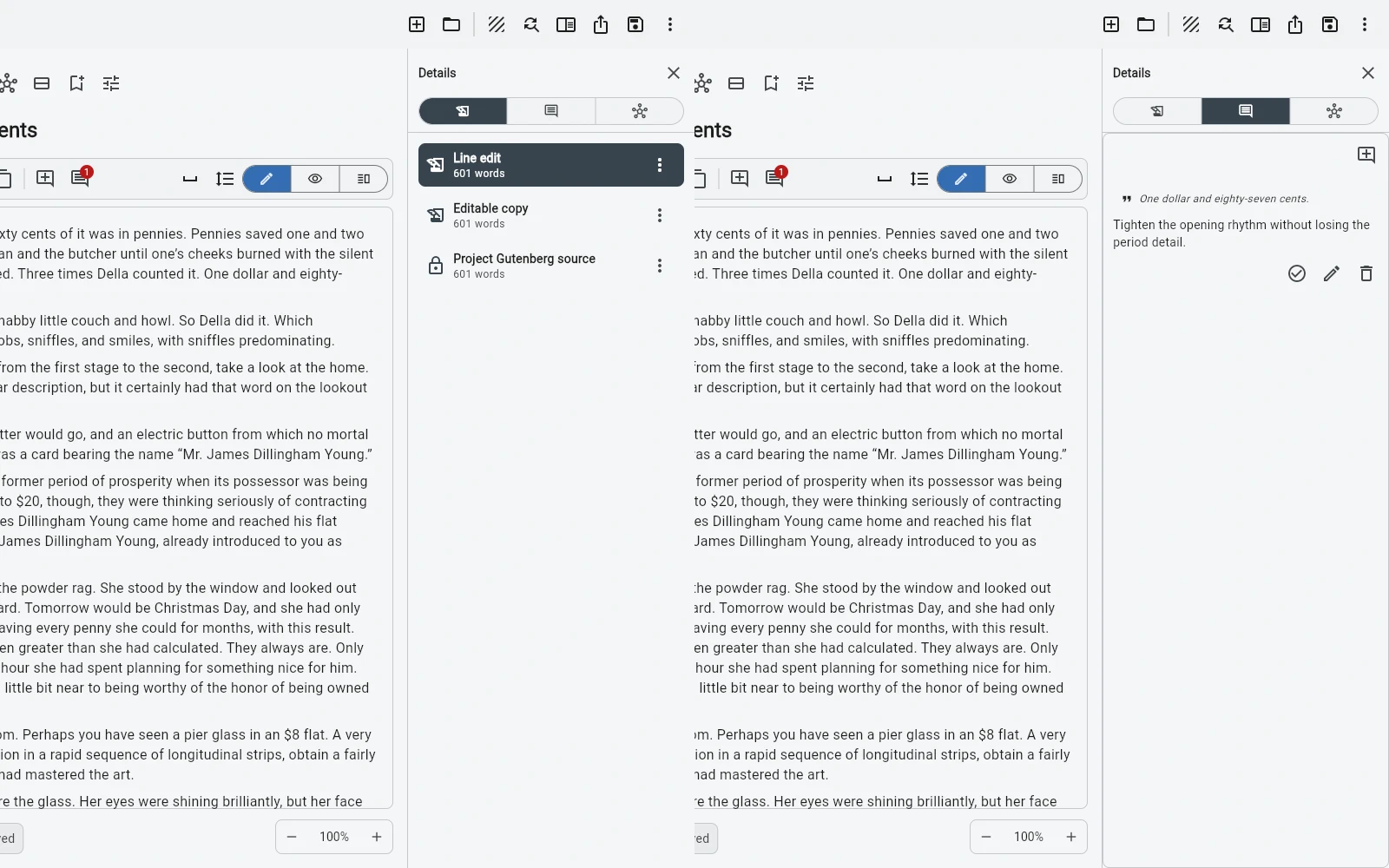
Create a new version when you are about to make a meaningful rewrite. Give it a useful name: “Shorter opening,” “Editor pass,” “Alternative ending,” or simply a date if that is enough context.
Step 2. Rewrite without deleting the previous answer
A difficult rewrite is easier when the earlier text still exists. You can cut aggressively, change the point of view, move a scene, or test a shorter argument without treating every edit as irreversible.
This changes behaviour in a small but important way: you can experiment instead of protecting yesterday's text just because recovering it would be annoying.
Step 3. Compare instead of relying on memory
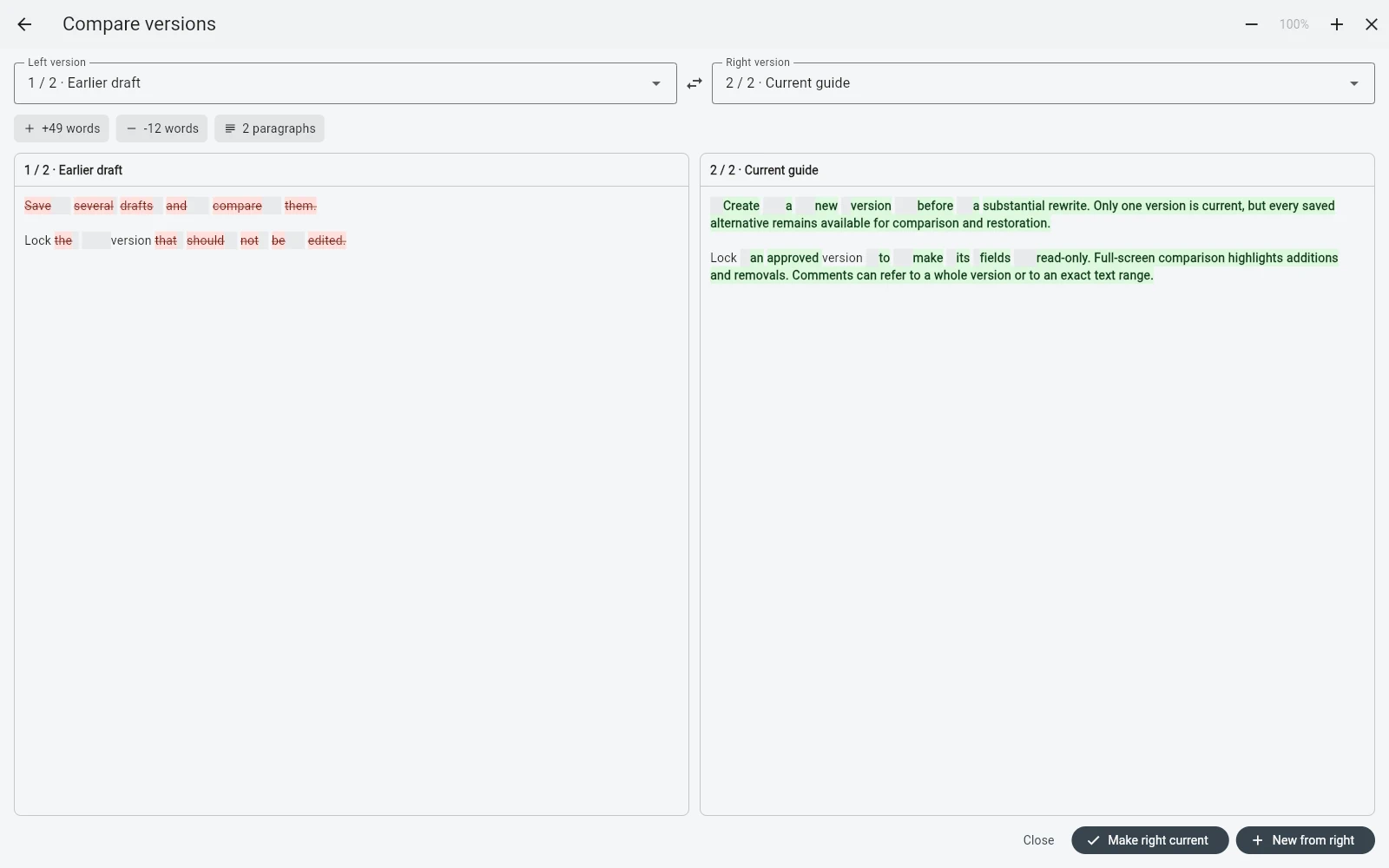
When two revisions feel different but you cannot immediately explain why, compare them directly. The comparison view makes additions and removals visible without opening two separate files and scrolling them manually.
This is useful not only for proofreading. It helps answer editorial questions: Did the rewrite actually become shorter? Which example disappeared? Did the new opening remove a piece of context that was still needed later?
assets/img/bmaker/bmaker-story-version-02.webpStep 4. Lock what should stop moving
Some versions are not merely old; they are reference points. Perhaps this is the text sent to an editor, the approved version for publication, or a milestone you want to preserve exactly as it was.
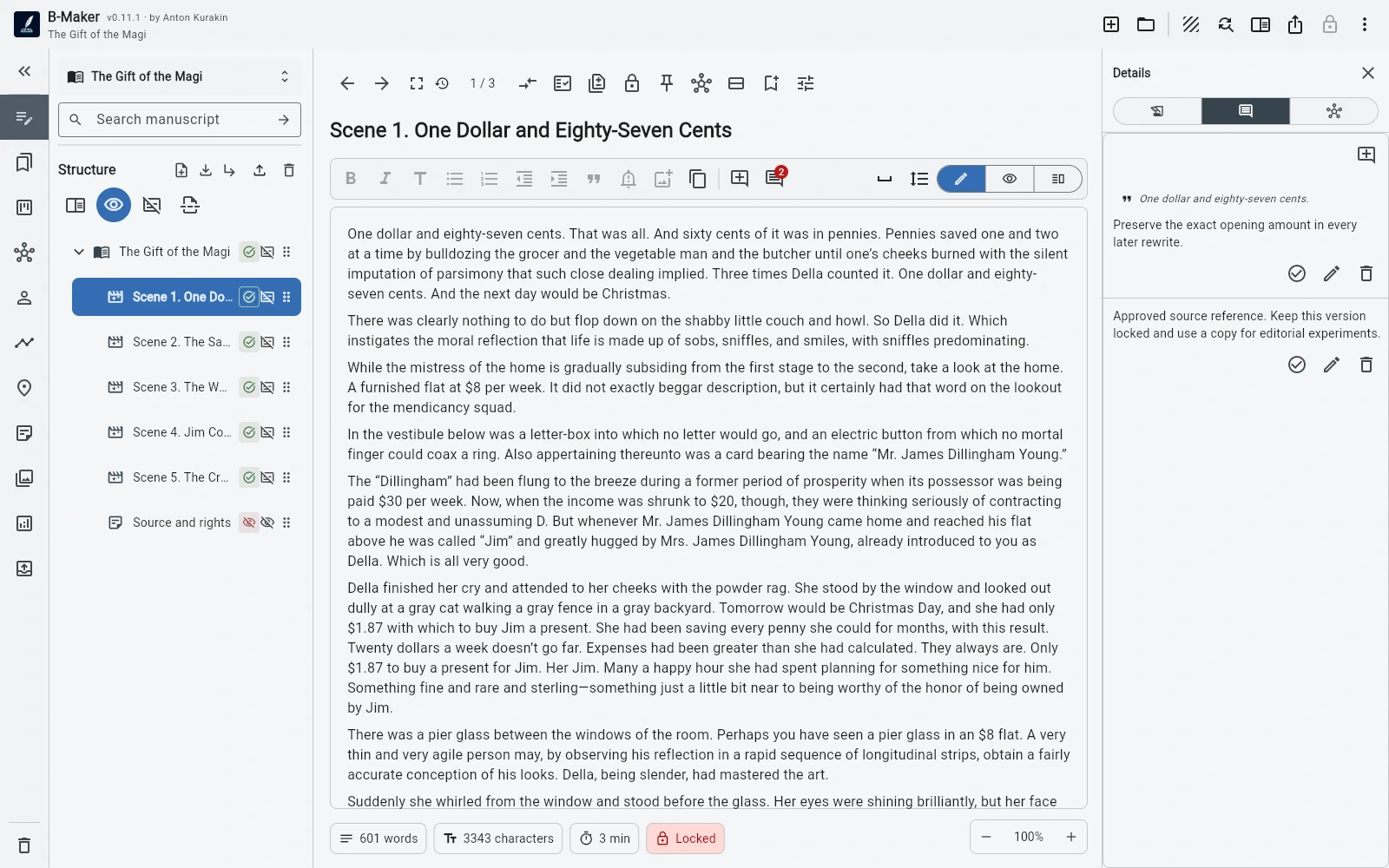
Lock that version. It opens read-only, which reduces the risk of quietly changing the reference copy while believing you are working on the next revision.
Step 5. Keep comments with the text they belong to
Revision is rarely just a sequence of files. It also contains decisions: why a paragraph exists, what still needs checking, what a reviewer questioned. Comments can belong to the whole text or to a specific passage, keeping the editorial conversation close to the material.
Versioning should reduce fear, not add process
This is not software-development Git transplanted into a writing application. A writer should not need commits, branches, merge strategies, or a source-control vocabulary to preserve an earlier draft.
The useful part of version control is simpler: know what is current, preserve what mattered, compare what changed, and experiment without destroying the previous state.
Related guides
Manuscript version management · How to organize a novel · From idea to chapter
Rewrite the chapter, not the filename.
Keep revisions inside the project and let the manuscript structure remain stable.